VPS setup
For trading accounts in MetaTrader on your own Windows VPS. Cloud accounts don't need any of this: you add them in the app and we run them for you.
Download and run the installer on your Windows VPS - the same machine where your MT4/MT5 terminals run. The Bridge automatically installs the Expert Advisors into all your open terminals.
Installing on a VPS? Copy the download link and paste it in your VPS browser.
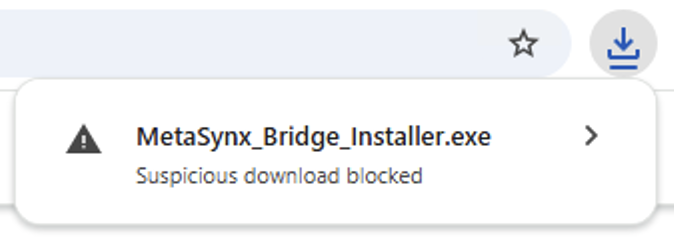
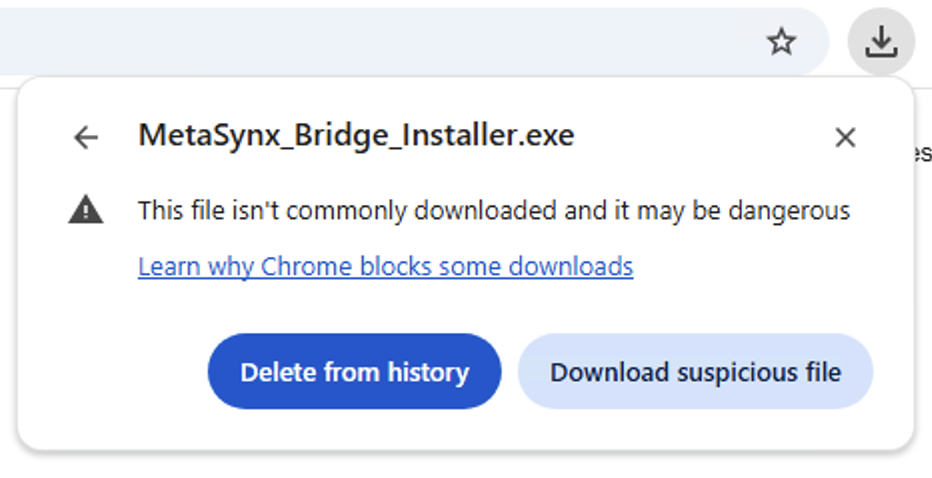
Because the Bridge installer is brand new, browsers haven't built up download history for it yet, so Microsoft Edge, Google Chrome and other browsers may show a caution message when you download it. This is a routine "new software" notice - not a sign that anything is wrong. The installer is digitally signed and published by MetaSynx LLC; you can confirm that name in the prompt before continuing. The warning disappears on its own as more people install the app.
Click the blocked download in the downloads bar to expand it, then choose Download suspicious file - this simply keeps the file you intended to download.
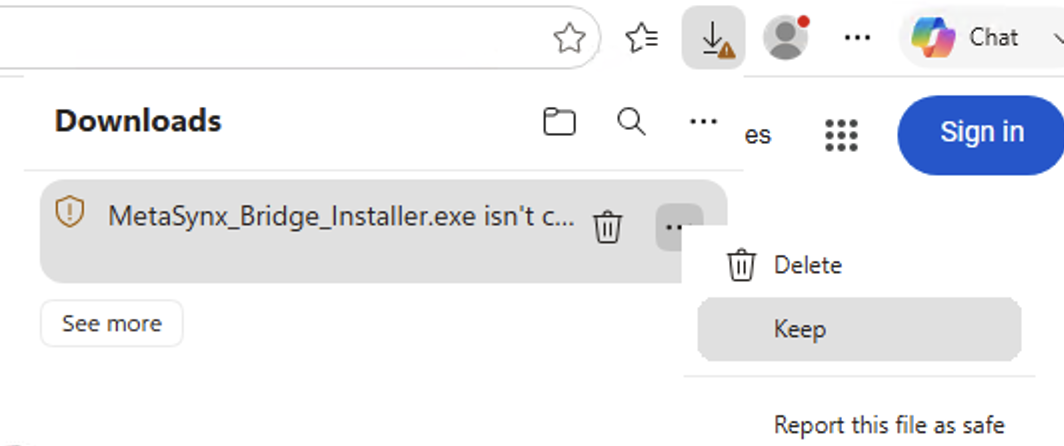
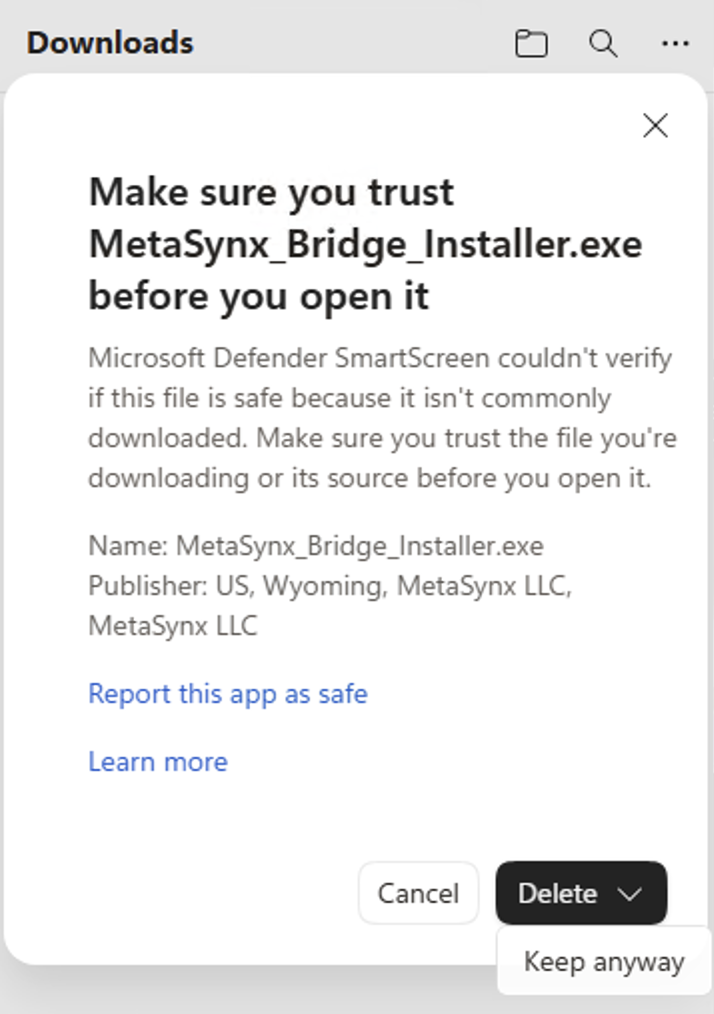
In the downloads list, open the ••• menu next to the file and click Keep. On the dialog that appears, confirm the publisher reads MetaSynx LLC, then open the dropdown beside Delete and choose Keep anyway.
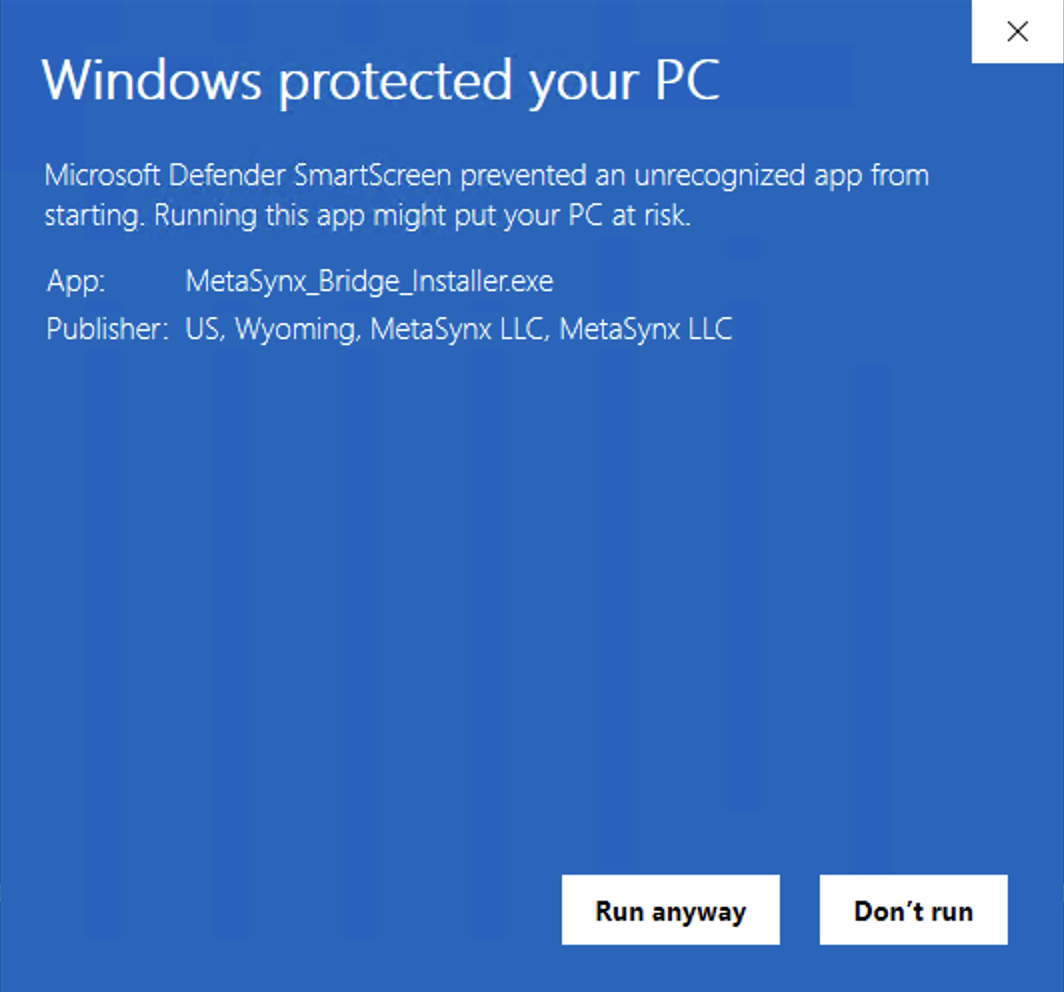
The first time you open the installer, Windows may show a blue "Windows protected your PC" screen. This is the same "new software" caution as above - Microsoft Defender SmartScreen simply hasn't seen the installer run enough times yet. It clears on its own as more people install the app.
Click More info on the blue screen, confirm the publisher reads MetaSynx LLC, then click Run anyway.
Download MetaSynx from the App Store, Google Play, or Huawei AppGallery. Sign in with your email and password, or scan the QR code below for instant sign-in.
Open the MetaSynx Bridge on your VPS - it shows a QR code. In the app, tap Scan QR to Pair PC and scan it.
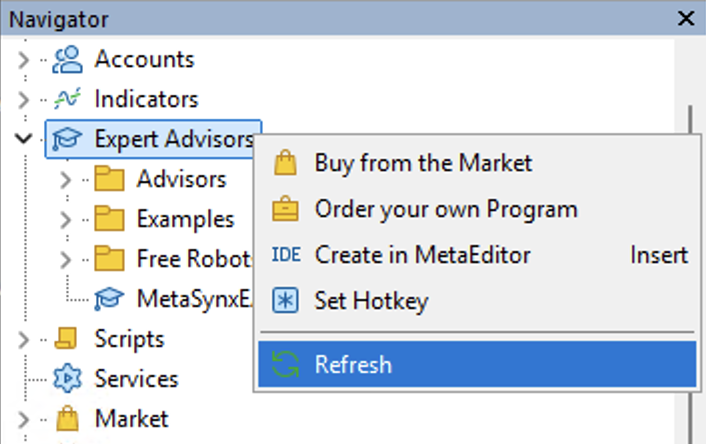
In your MetaTrader terminal, right-click Expert Advisors in the Navigator panel and click Refresh. Then double-click or drag MetaSynxEA onto any chart.
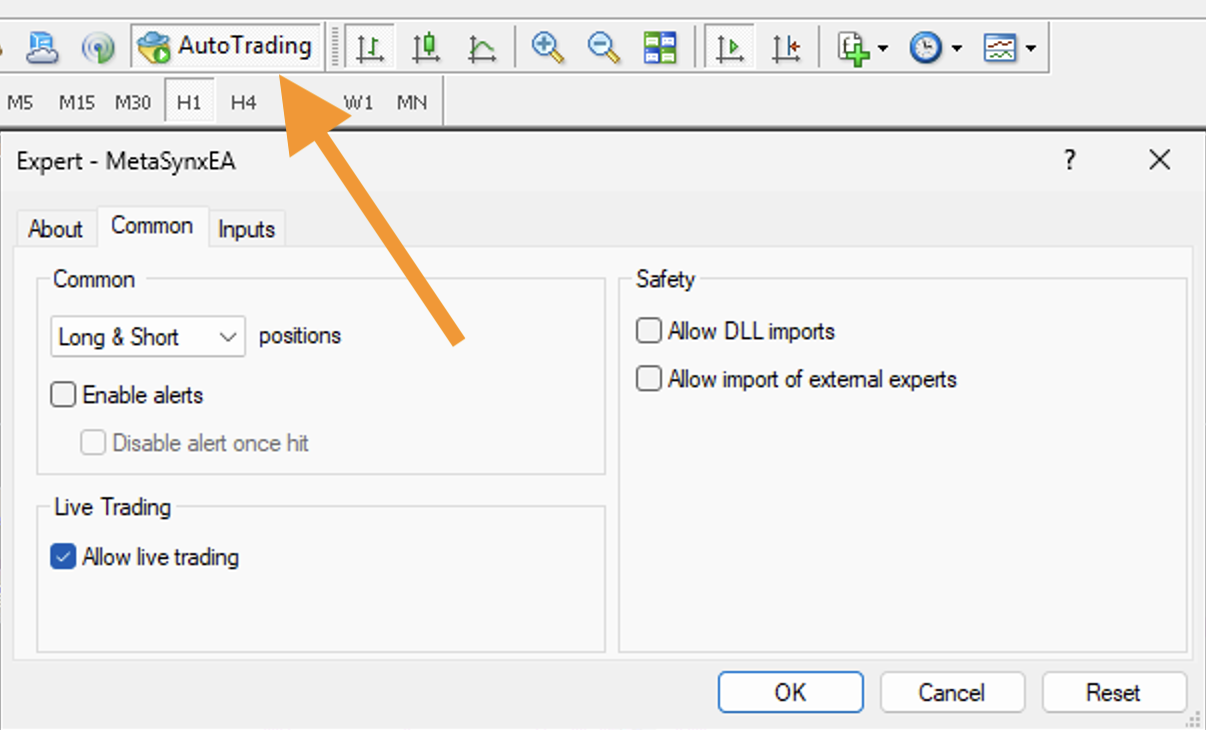
In the EA settings, check Allow live trading (MT4) or Allow Algo Trading (MT5). In the top toolbar, make sure AutoTrading (MT4) or Algo Trading (MT5) is enabled.
Market Watch cleanup: The EA has a CleanupMarketWatch input (enabled by default) that removes unused symbols once daily. Keeps only the ones you're actively trading.
Tip: Attach the EA to one chart per terminal - the account appears in the app automatically. For additional VPS machines, repeat steps 1, 3, and 4. The Bridge and EAs update automatically - no manual downloads needed after setup.
Setup's done - now the fun part. As you start exploring MetaSynx, we highly recommend keeping the App Guide close by. It's a screen-by-screen tour with each control clearly annotated. Pop it open whenever you land on a new screen and want to know exactly what everything does. It only takes a few minutes and makes the whole app click.
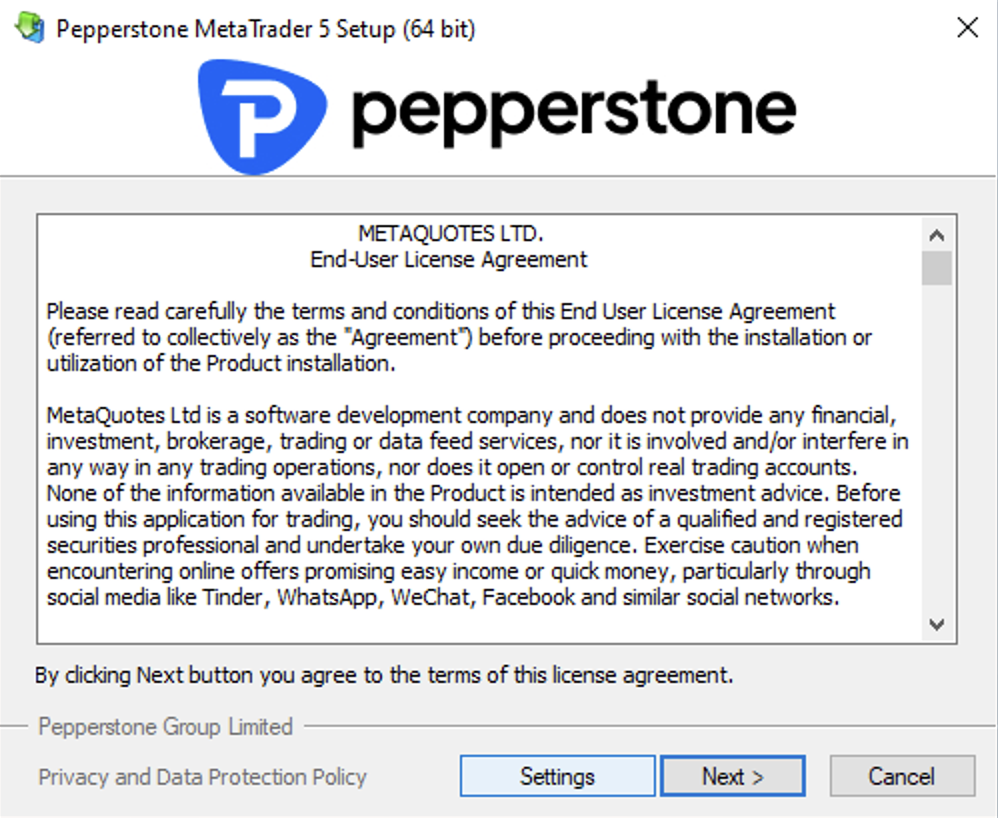
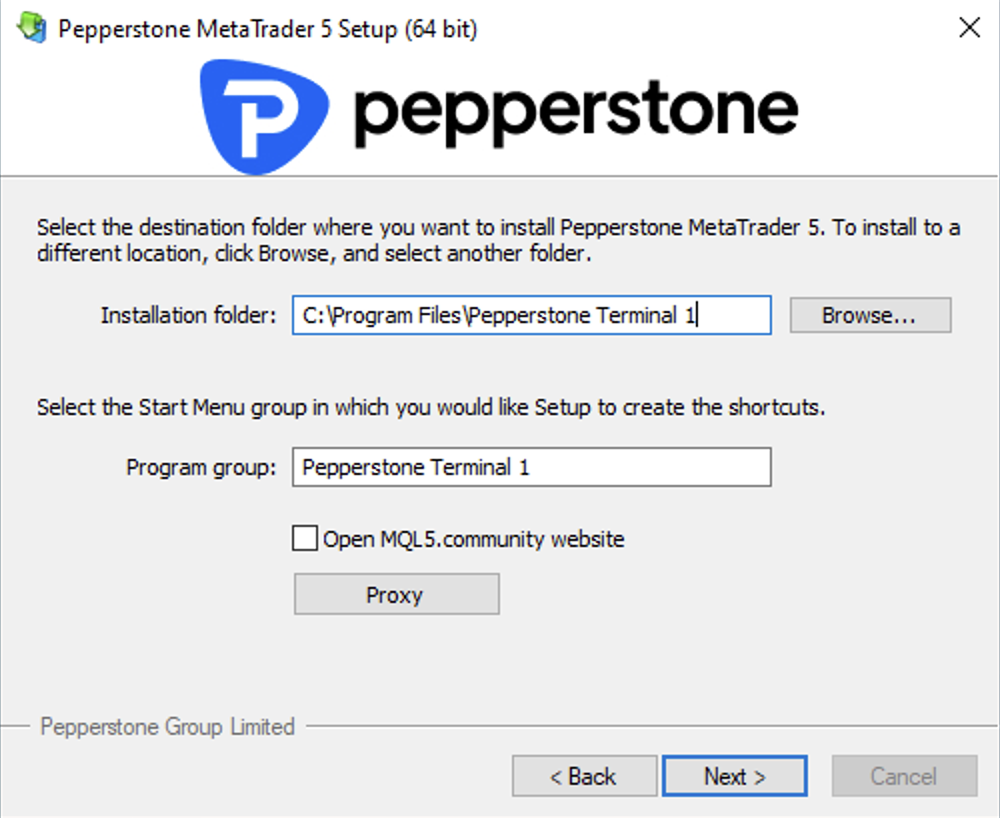
To run multiple broker accounts on the same VPS, install each terminal to a separate folder. When opening the installer, click Settings, then set a unique installation path (e.g. C:\Program Files\Terminal 2) and program group name. The MetaSynx Bridge will automatically detect all terminals and install the EA into each one.
Manage all your accounts from one app. Happy trading.